USB File Transfer (Update Mode)
Update Mode exposes a virtual drive on your computer over USB Mass Storage. Copy files to it, eject, and the scooter processes them automatically.
Entering Update Mode
There are two ways to enter Update Mode:
From the dashboard
- Double-tap the left brake to open the menu
- Go to Settings → System → Enter Update Mode
From the CLI
lsc usb ums
To switch back to normal (network) mode:
lsc usb normal
Leaving Update Mode
Hold the left brake for 3 seconds. The dashboard shows the hold as Cancel while Update Mode is still preparing, and as Exit once the drive is live.
- While preparing: the entry is abandoned before the USB gadget switches over, so the network connection is never dropped.
- Once active: the scooter switches the USB port back to network mode and processes whatever is on the drive, exactly as it does after an eject. Eject on your computer first so the files are fully written.
No other gesture leaves Update Mode. A right brake press or a seatbox tap is ignored on purpose, so a stray input can't interrupt a transfer. lsc usb normal works too.
Transferring files
- Open the footwell with a PH2 Phillips or H4 hex driver to reach the MDB. Its Mini-B port is normally occupied by the internal DBC USB cable.
- Undo the cable's retaining screw with a flat-head or PH1 screwdriver, then disconnect the internal DBC USB cable from the MDB.
- Connect your computer to that Mini-B port. A drive appears on your computer.
- Copy files into the appropriate folder (see below).
- Safely eject the drive. The scooter processes everything on it, then reboots if a firmware update was among it.
- Leave Update Mode, disconnect your computer, then reconnect and secure the internal DBC USB cable.
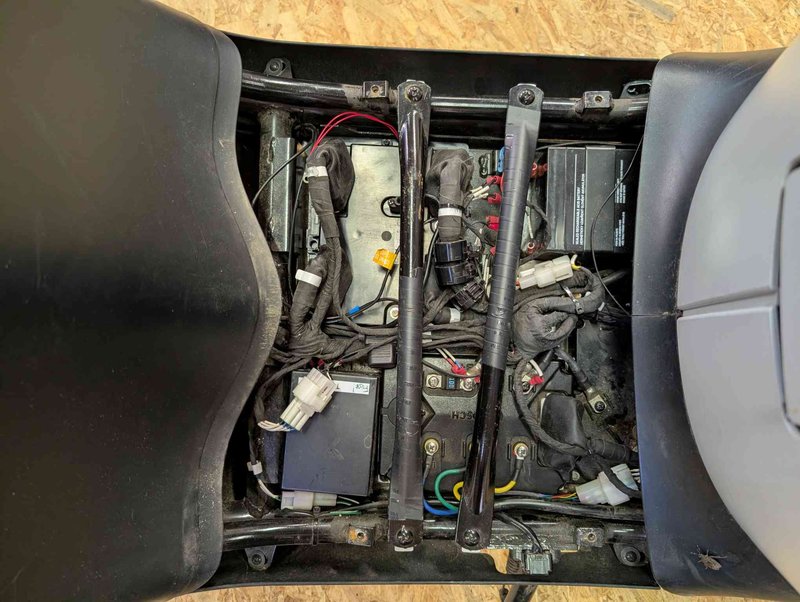
The MDB sits in the open footwell.
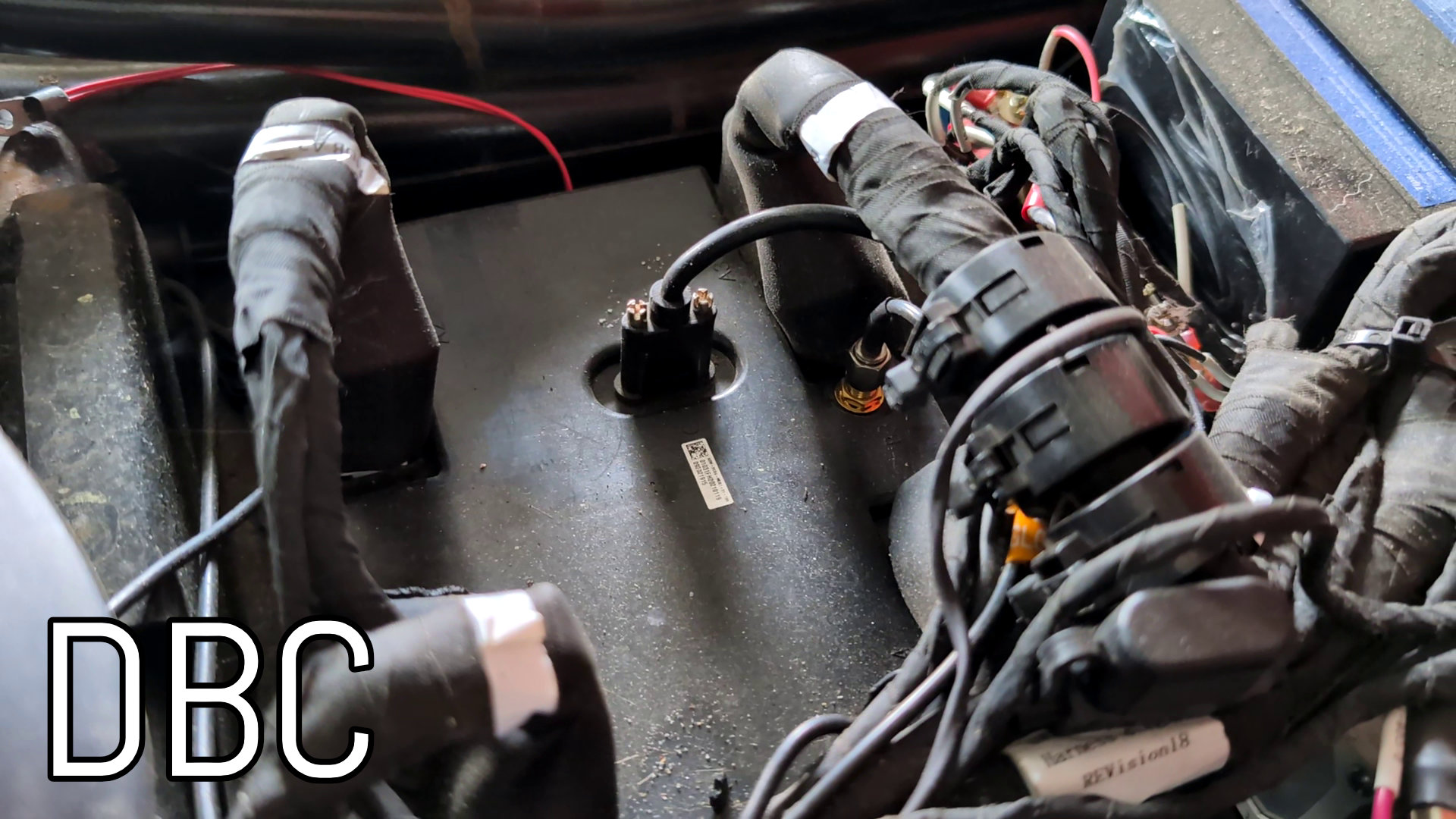
Disconnect the internal DBC USB cable to free the Mini-B port.
Larger regional packages (e.g. the Valhalla tiles for Bavaria at ~910 MB) can fill it on their own, and combinations like
.mbtiles + routing tiles often won't fit at once. In that case, do it in two sessions: install the display map (.mbtiles) first, eject and let the scooter apply it, then re-enter Update Mode for the routing tiles.
What's on the drive
Every folder below is created when Update Mode starts, so an empty one is normal rather than a sign something went wrong.
| Path | Direction | What it's for |
|---|---|---|
system-update/ | you fill it | Firmware artifacts, .mender or .delta |
maps/ | you fill it | Map display tiles and Valhalla routing tiles |
rpms/mdb/, rpms/dbc/ | you fill it | RPM packages to install on that board |
scripts/mdb.sh, scripts/dbc.sh | you fill it | Shell scripts run once on that board |
settings.toml | round-trip | Current settings, exported for you to edit and read back |
wireguard/ | round-trip | WireGuard configs, exported and read back |
radio-gaga/config.yaml | round-trip | radio-gaga telemetry config |
uplink-service/config.yaml | round-trip | uplink-service config |
onboot.sh | round-trip | Script the scooter runs on every boot |
diagnostics/mdb/, diagnostics/dbc/ | scooter writes it | journal.log and dmesg.log from each board, collected on entry |
log-bundles/ | scooter writes it | Bundles previously captured with lsc, copied out for you |
ums_log.txt | scooter writes it | What happened during processing. Written on the way out and kept when the drive is wiped |
Round-trip means the scooter puts its current version on the drive when Update Mode starts, and reads the file back when you leave. Edit in place, don't create from scratch, and if you don't touch it nothing changes.
Map display tiles
Copy any .mbtiles file into the maps/ folder on the drive. The scooter installs it as the offline map source.
Download pre-built tiles from Librescoot OSM Tiles releases.
Valhalla routing tiles
Copy the downloaded .tar archive into the maps/ folder as-is. The scooter accepts both the release file names (valhalla_tiles_<region>.tar) and any name ending in tiles.tar.
Download pre-built routing tiles from Librescoot Valhalla Tiles releases.
Firmware updates
Copy .mender or .delta artifacts into the system-update/ folder to install a firmware update without a SIM card. This is the only thing that triggers a reboot; everything else is applied by restarting the affected service.
Configuration
Changing settings.toml or anything under wireguard/ restarts librescoot-settings. Changing radio-gaga/config.yaml restarts radio-gaga, and uplink-service/config.yaml restarts librescoot-uplink. Nothing is restarted if the file came back unchanged.
Packages and scripts
RPMs in rpms/mdb/ and rpms/dbc/ are installed on the matching board. Scripts named mdb.sh and dbc.sh under scripts/ are run once each, on the board their name says. Anything targeting the DBC is skipped if the DBC can't be reached.
Scripts and RPMs run as root
There is no sandbox and no signature check. Only put something there if you wrote it or trust whoever did.
How it works
Update Mode is managed by ums-service on the MDB. It switches the USB port from network mode (USB Ethernet) to USB Mass Storage mode, exposing a partition on the scooter's eMMC as a removable drive.
When the drive is ejected, ums-service detects the eject event and works through the drive in a fixed order: settings, WireGuard, radio-gaga, uplink-service, onboot.sh, firmware updates, maps, RPMs, scripts. Each step is independent, so one failing doesn't stop the rest, and ums_log.txt records what each one did.
Afterwards the drive is wiped apart from ums_log.txt, so the next session starts clean. If a firmware artifact was queued, the scooter waits for the install to finish and then reboots.
Troubleshooting
- Drive doesn't appear: make sure the scooter is in Update Mode (check dashboard or run
lsc usb status). Try a different USB cable. - Files not applied after eject: check that you safely ejected (not just unplugged). The scooter needs the eject event to trigger processing.
- Scooter doesn't reboot: reconnect USB and eject again, or reboot manually with
lsc power reboot.