USB File Transfer (Update Mode)
Update Mode exposes a virtual drive on your computer over USB Mass Storage. Copy files to it, eject, and the scooter processes them automatically.
Entering Update Mode
There are two ways to enter Update Mode:
From the dashboard
- Double-tap the left brake to open the menu
- Go to Settings → System → Enter Update Mode
From the CLI
lsc usb ums
To switch back to normal (network) mode:
lsc usb normal
Transferring files
- Open the footwell with a PH2 Phillips or H4 hex driver to reach the MDB. Its Mini-B port is normally occupied by the internal DBC USB cable.
- Undo the cable's retaining screw with a flat-head or PH1 screwdriver, then disconnect the internal DBC USB cable from the MDB.
- Connect your computer to that Mini-B port. A drive appears on your computer.
- Copy files into the appropriate folder (see below).
- Safely eject the drive. The scooter processes the files and reboots automatically.
- Disconnect your computer, then reconnect and secure the internal DBC USB cable.
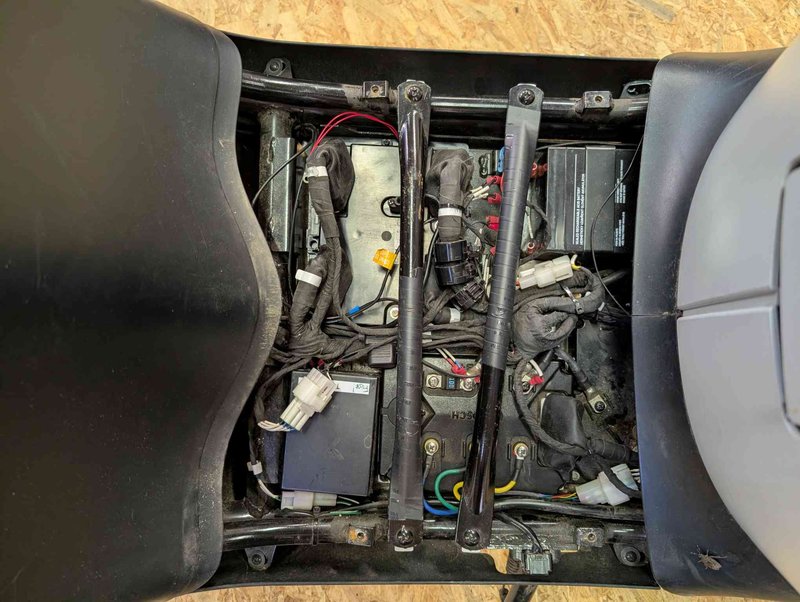
The MDB sits in the open footwell.
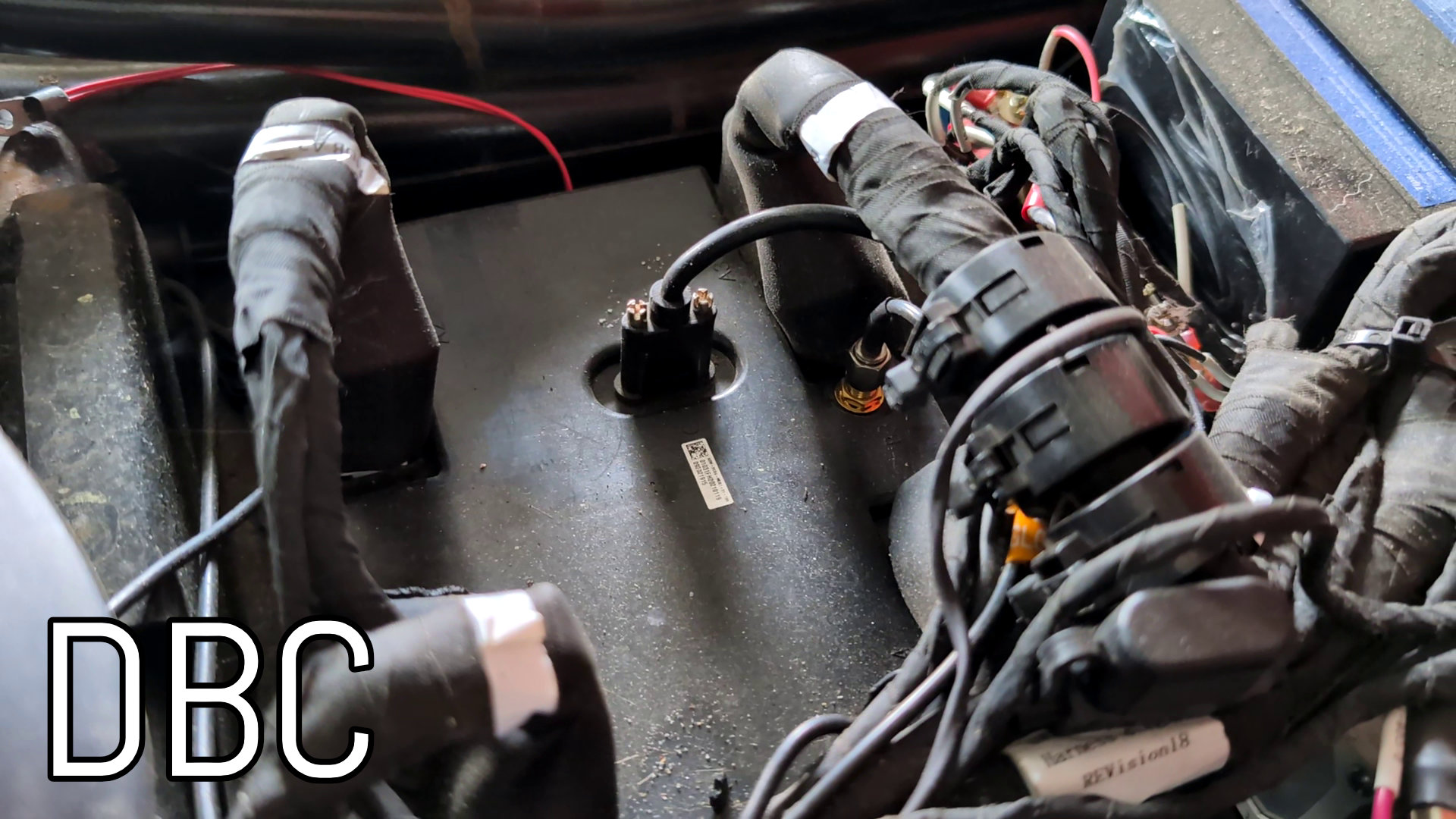
Disconnect the internal DBC USB cable to free the Mini-B port.
Larger regional packages (e.g. the Valhalla tiles for Bavaria at ~910 MB) can fill it on their own, and combinations like
.mbtiles + routing tiles often won't fit at once. In that case, do it in two sessions: install the display map (.mbtiles) first, eject and let the scooter apply it, then re-enter Update Mode for the routing tiles.
What you can transfer
Map display tiles
Copy any .mbtiles file into the maps/ folder on the drive. The scooter installs it as the offline map source.
Download pre-built tiles from Librescoot OSM Tiles releases.
Valhalla routing tiles
Copy the downloaded .tar archive into the maps/ folder as-is. The scooter accepts both the release file names (valhalla_tiles_<region>.tar) and any name ending in tiles.tar.
Download pre-built routing tiles from Librescoot Valhalla Tiles releases.
Firmware updates
Copy .mender update artifacts into the system-update/ folder on the drive to install a firmware update without a SIM card. The folder is created for you when Update Mode starts.
How it works
Update Mode is managed by ums-service on the MDB. It switches the USB port from network mode (USB Ethernet) to USB Mass Storage mode, exposing a partition on the scooter's eMMC as a removable drive.
When the drive is ejected, ums-service detects the eject event, copies any new files to the correct locations on the data partition, and reboots the scooter to apply them.
Troubleshooting
- Drive doesn't appear: make sure the scooter is in Update Mode (check dashboard or run
lsc usb status). Try a different USB cable. - Files not applied after eject: check that you safely ejected (not just unplugged). The scooter needs the eject event to trigger processing.
- Scooter doesn't reboot: reconnect USB and eject again, or reboot manually with
lsc power reboot.