USB File Transfer (Update Mode)
Update Mode exposes a virtual drive on your computer over USB Mass Storage. Copy files to it, eject, and the scooter processes them automatically.
For browser-based transfers while USB is in network mode, use lsd's Files page, or its Updates page for firmware uploads.
Entering Update Mode
There are two ways to enter Update Mode:
From the dashboard
- Double-tap the left brake to open the menu
- Go to Settings → System → Update Mode…
From the CLI
lsc usb ums
To switch back to normal (network) mode:
lsc usb normal
Leaving Update Mode
Hold the left brake for 3 seconds. The dashboard shows the hold as Cancel while Update Mode is still preparing, and as Exit once the drive is live.
- While preparing: the entry is abandoned before the USB gadget switches over, so the network connection is never dropped.
- Once active: the scooter switches the USB port back to network mode and processes whatever is on the drive, exactly as it does after an eject. Eject on your computer first so the files are fully written.
No other gesture leaves Update Mode. A right brake press or a seatbox tap is ignored on purpose, so a stray input can't interrupt a transfer. lsc usb normal works too.
Transferring files
- Open the footwell with a PH2 Phillips or H4 hex driver to reach the MDB. Its Mini-B port is normally occupied by the internal DBC USB cable.
- Undo the cable's retaining screw with a flat-head or PH1 screwdriver, then disconnect the internal DBC USB cable from the MDB.
- Connect your computer to that Mini-B port. A drive appears on your computer.
- Copy files into the appropriate folder (see below).
- Safely eject the drive. The scooter processes everything on it, then reboots if a firmware update was among it.
- Leave Update Mode, disconnect your computer, then reconnect and secure the internal DBC USB cable.
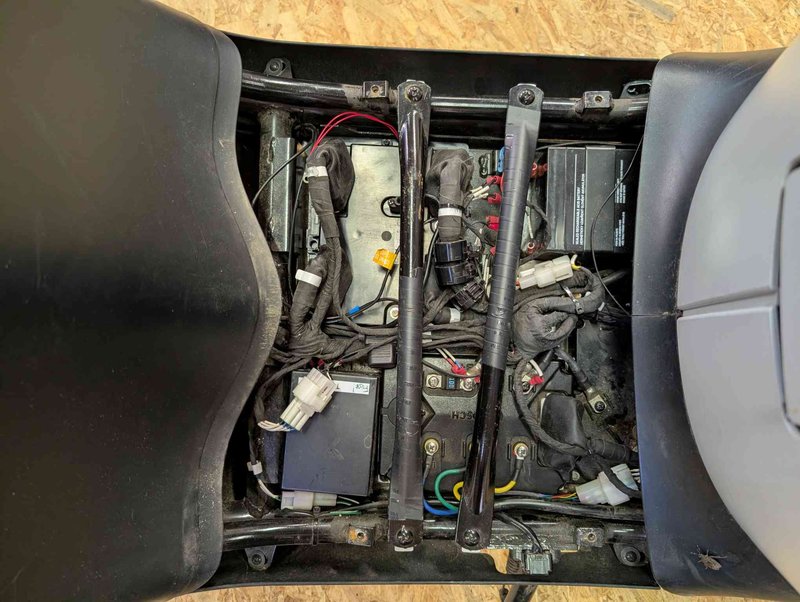
The MDB sits in the open footwell.
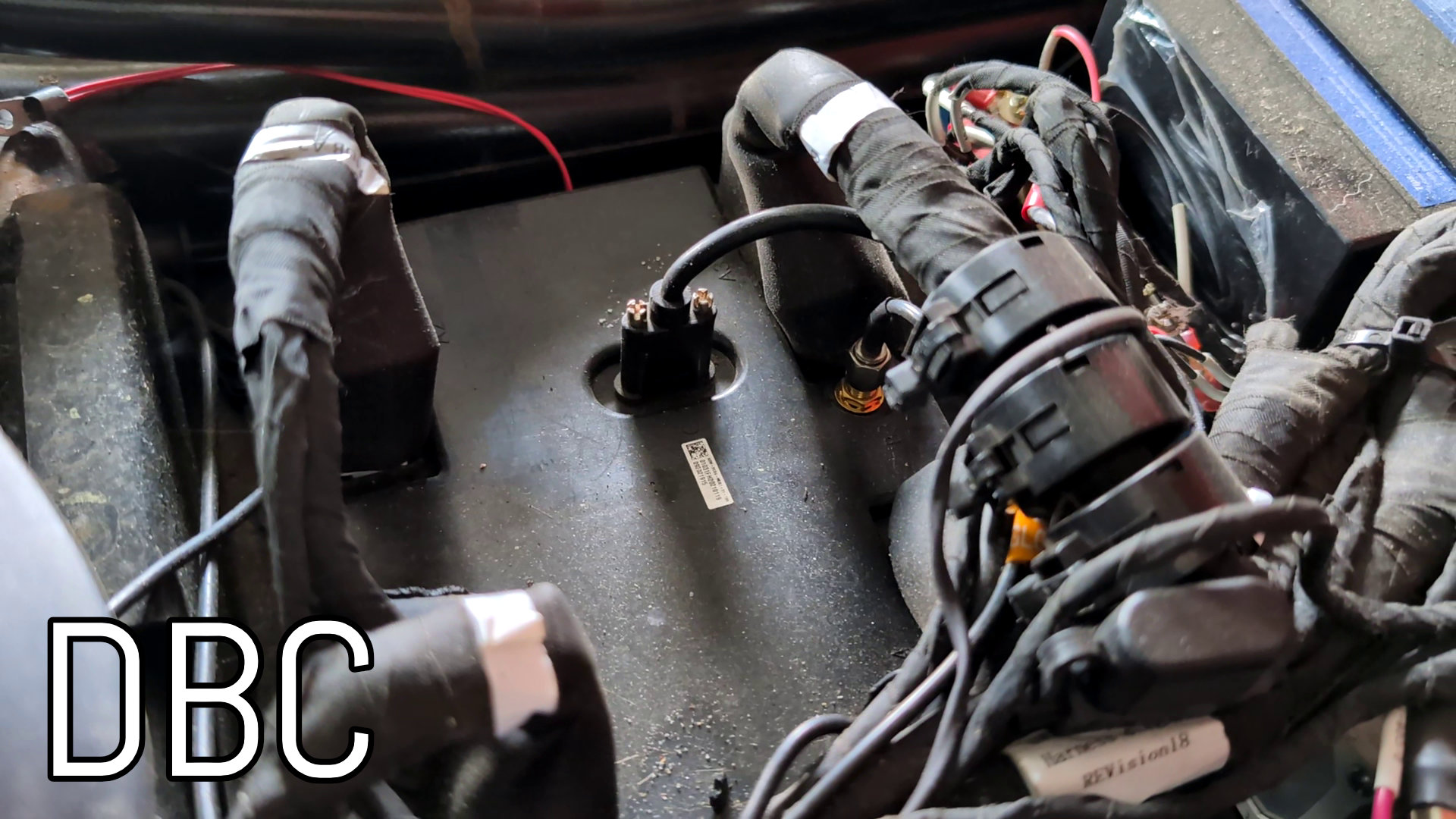
Disconnect the internal DBC USB cable to free the Mini-B port.
Larger regional packages can fill it on their own (e.g. the Netherlands display tiles at ~540 MB, or the uncompressed Valhalla tiles for Bavaria at ~725 MB), and combinations like
.mbtiles + routing tiles often won't fit at once. The compressed .tar.zst routing archives are roughly a third of the plain size and often make a combination fit, but when it still exceeds the drive, do it in two sessions: install the display map (.mbtiles) first, eject and let the scooter apply it, then re-enter Update Mode for the routing tiles.
What's on the drive
The scooter creates these folders when Update Mode starts.
| Path | Direction | What it's for |
|---|---|---|
system-update/ | you fill it | Firmware artifacts, .mender or .delta |
maps/ | you fill it | Map display tiles and Valhalla routing tiles |
rpms/mdb/, rpms/dbc/ | you fill it | RPM packages to install on that board |
scripts/mdb.sh, scripts/dbc.sh | you fill it | Shell scripts run once on that board |
settings.toml | round-trip | Current settings, exported for you to edit and read back |
wireguard/ | round-trip | WireGuard configs, exported and read back |
radio-gaga/config.yaml | round-trip | radio-gaga telemetry config |
uplink-service/config.yaml | round-trip | uplink-service config |
onboot.sh | round-trip | Script the scooter runs on every boot |
diagnostics/mdb/, diagnostics/dbc/ | scooter writes it | journal.log and dmesg.log from each board, collected on entry |
log-bundles/ | scooter writes it | Bundles previously captured with lsc, copied out for you |
ums_log.txt | scooter writes it | What happened during processing. Written on the way out and kept when the drive is wiped |
Round-trip means the scooter exports its current file on entry and imports it on exit. Edit exported files in place, keeping unrelated values and credentials. If no file was exported because a feature has not been configured, you can create one at the exact path above. Use plain UTF-8 text, Unix (LF) line endings and the exact filename, without an extra .txt extension. Back up configurations securely: they can contain private keys or tokens.
Map display tiles
Copy any .mbtiles file into the maps/ folder on the drive. The scooter installs it as the offline map source.
Download pre-built tiles from Librescoot OSM Tiles releases.
Valhalla routing tiles
Copy the downloaded archive into the maps/ folder as-is. The scooter accepts any file name ending in tiles.tar or tiles.tar.zst, including release files such as valhalla_tiles_<region>.tar.zst. The compressed form reduces the download and USB transfer size and is unpacked automatically.
Download pre-built routing tiles from Librescoot Valhalla Tiles releases.
Firmware updates
Copy .mender or .delta artifacts into the system-update/ folder to install a firmware update without a SIM card. This is the only thing that triggers a reboot; everything else is applied by restarting the affected service.
Configuration
Changing settings.toml or anything under wireguard/ restarts librescoot-settings. Changing radio-gaga/config.yaml restarts radio-gaga, and uplink-service/config.yaml restarts librescoot-uplink. Nothing is restarted if the file came back unchanged.
Configuration formats
settings.toml groups settings into TOML sections. For example:
[dashboard]
language = "en"
theme = "auto"
Merge edits into the existing section without repeating its header, and keep the rest of the exported file: import replaces the on-disk TOML rather than merging a fragment. Invalid TOML is skipped. See the Settings Reference for supported keys and values.
wireguard/ accepts standard WireGuard INI files directly in the folder, one .conf per tunnel. The WireGuard setup guide explains the keys, addresses, server peer and connection checks. Deleting an exported .conf removes that tunnel; an empty folder removes all managed tunnels. Removing the folder itself leaves existing tunnels unchanged.
The two config.yaml files use YAML with space indentation. They belong to different services: radio-gaga uses mqtt.broker_url, while uplink-service uses uplink.server_url. Set scooter.identifier and scooter.token to the credentials for your backend. Preserve existing certificate fields and other sections; certificate paths refer to files on the scooter. Start new configurations from the radio-gaga or uplink-service example, saving it under the exact USB path above. Check the service journal for configuration errors if it fails to start after import.
onboot.sh installs /data/onboot.sh on the MDB for future boots, not immediate execution. It needs a shebang such as #!/bin/sh and valid shell syntax. UMS sets executable permissions. To disable it via USB, replace its contents with #!/bin/sh followed by exit 0. Missing settings, YAML or boot-script files leave installed versions unchanged.
diagnostics/*/*.log files contain plain-text diagnostic output. Copy diagnostics and log bundles to your computer before leaving Update Mode; they are cleared after processing. Import results remain in ums_log.txt.
Packages and scripts
RPMs in rpms/mdb/ and rpms/dbc/ are installed on the matching board. Plain-text scripts named mdb.sh and dbc.sh under scripts/ run once under Bash on that board. Start with #!/bin/bash, then your shell commands. Anything targeting the DBC is skipped if the DBC can't be reached.
Scripts and RPMs run as root
Review scripts and packages before importing them: they have full access to the board on which they run.
How it works
Update Mode is managed by ums-service on the MDB. It switches the USB port from network mode (USB Ethernet) to USB Mass Storage mode, exposing a partition on the scooter's eMMC as a removable drive.
When the drive is ejected, ums-service detects the eject event and works through the drive in a fixed order: settings, WireGuard, radio-gaga, uplink-service, onboot.sh, firmware updates, maps, RPMs, scripts. Each step is independent, so one failing doesn't stop the rest, and ums_log.txt records what each one did.
Afterwards the drive is wiped apart from ums_log.txt, so the next session starts clean. If a firmware artifact was queued, the scooter waits for the install to finish and then reboots.
Troubleshooting
- Drive doesn't appear: make sure the scooter is in Update Mode (check dashboard or run
lsc usb status). Try a different USB cable. - Files not applied after eject: check that you safely ejected (not just unplugged). The scooter needs the eject event to trigger processing.
- Scooter doesn't reboot: reconnect USB and eject again, or reboot manually with
lsc power reboot.
← Navigation Setup lsc CLI Reference →
Regional map packs
For several regions, use maps/tiles_<slug>.mbtiles and matching maps/valhalla_tiles_<slug>.tar or .tar.zst. Two or more named map files select regional installation. For a single pair, add an empty maps/regional-packs file. Without that marker, a single pair retains singleton installation behavior.
An active regional installation with a symlink at /data/valhalla/tiles.tar accepts single-pack updates without a marker. An existing regular tiles.tar is left untouched: preserve it under its matching region name and explicitly set up the symlink when migrating. With a recent GPS fix, the dashboard switches regions. Routes cannot cross region boundaries.